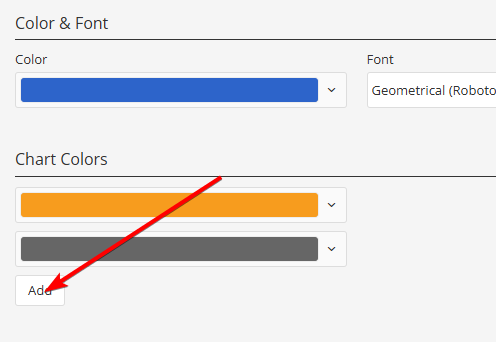
The main color of any tearsheet template can be adjusted in the template settings. Depending on the template, changing the main color will typically affect titles or their backgrounds, table borders, and other elements in your tearsheet.
Changing the main template color
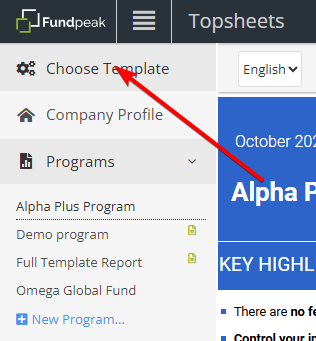
1) Click Choose Template to access your templates.
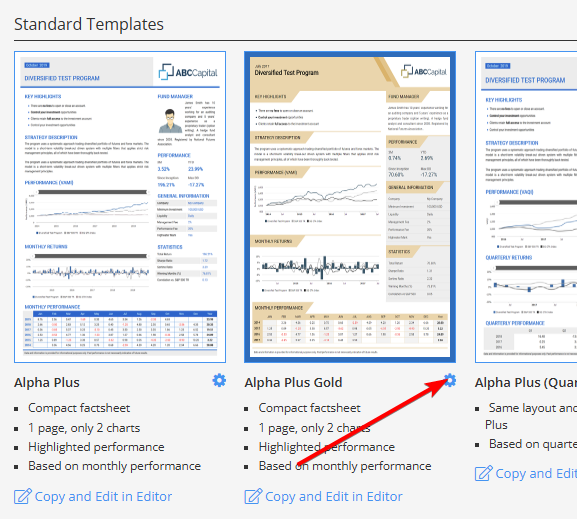
2) Find the template you’d like to update and click the Settings icon.
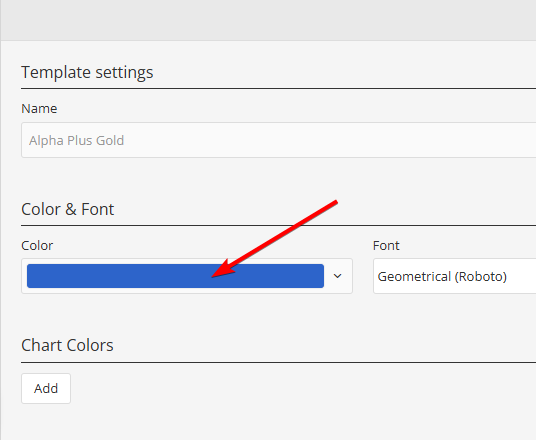
3) In the Color & Font section, click the Color field and select a color.
4) Save your changes.
Chart Colors
Chart colors can also be customized in the template settings. In the Chart Colors section, add the colors you would like to use for your charts.