
-
Benchmarks
-
Charts
- Annual Performance Chart
- Asset Allocation History (Chart)
- Asset Class Exposure
- Consecutive Gains (Losses)
- Correlations (chart)
- Cumulative Returns (Equity)
- Displaying amounts/labels in charts
- Distribution of Monthly Returns
- Distribution of Quarterly Returns
- Distribution of Rolling Annual Returns
- Drawdown chart
- Dynamic and Interactive charts
- Excess Returns Charts and Tables
- Geographic Exposure
- Holding Period Exposure
- How to long, short, and net positions in a chart
- Market Cap Allocation
- Monthly Returns
- Portfolio Composition Chart
- Return (Performance) Contribution
- Return Report
- Risk Rating
- Risk/Return Chart
- Scatter plot (Manager Consistency)
- Strategy Exposure
- Style Analysis (Chart)
- Up/Down Capture vs. Benchmark
- Up/Down Market Outperformance (Chart)
- VAMI chart
- Volatility chart (12 months rolling)
-
Company Information
-
Data Import
- Available fields for Mass Portfolio Composition Import
- Creating Import file / Mass import file
- Import NAV
- Import Portfolio Composition
- Import Sector Allocation History
- Mass Daily Data Import
- Mass data import
- Mass Portfolio Composition Import
- Mass Quarterly Data Import
- Most common mistakes when importing data.
- Set Auto-import
- Total Mass Import
- Update or import your data
- Updating and uploading monthly performance data
- Upload daily performance
- Use FTP to update my factsheets
- Using Excel AutoFill for dates
-
Factsheet Publishing
-
Factsheet Templates
-
Fundpeak API
-
Other
- Add new programs
- Adding Google Analytics tracking code
- Adding images to articles
- Articles
- Articles - Inteligent
- Avoid Formatting Issues When Copying Content
- Basic tutorial video how to use TopSheets
- Change password
- Checking HTML code
- Client Portal
- Copy a program
- Delete data
- Difference between programs and portfolios
- Disable new device sign up alert
- Export Fund Terms / Links to all reports
- Financial Data
- Invoice or receipts
- Leverage in Portfolio
- Login Attempt Limit
- My program doesn't show up in the TOP 10 tables.
- Organize factsheets into folders
- Paragraphs vs Line breaks
- Points vs commas
- Portfolio holdings and allocation templates
- Program and template adjustments
- Refer our service
- Save changes made to custom template
- Save credit cards for next payments
- Save your Factsheet
- Set up your custom domain name
- Translate my Factsheet
- Two-factor authentication (2FA)
-
Performance Data
-
Portfolio Composition
-
Portfolio Tool
-
Program Information
- Abbreviate large numbers in the General Information table
- Advisor fees in Program
- Change administrator
- Change program name
- Create multiple versions of your factsheet
- Custom Fields
- Delete Programs
- High-water Mark
- I cannot find where to fill some fields displayed in my template
- Import Fund Terms
- Notional Funding
- Program identifier
- Restore archived factsheets
- Short program name in charts and tables
- Templates for Forex
- The License Number is not displayed properly
- UCITS SRRI
- Update disclaimer
- Update programs content
- Update the Fund Manager section in your template
-
Statistics
- 12 Months ROR
- 3 Months ROR
- 36 Months ROR
- Active Premium
- Alpha
- AUM Gains
- Average AuM
- Average Losing Month/Quarter
- Average Market Net Exposure
- Average Positive Month/Quarter
- Average ROR
- Best Year / Best Positive Year
- Beta
- Calculate net returns / Include fees into results
- Calculate the non compounded Drawdown
- Calmar Ratio
- Correlation and Correlation Coefficient
- Correlation to negative months
- Correlation vs net/gross returns
- Current Drawdown
- Difference between compounded and non compounded rate of return
- Downside Correlation
- Downside Deviation (Semi Deviation)
- Drawdown Report
- Excess Returns
- Export statistics to Excel
- Gain Standard Deviation
- Hide statistics without values
- Highest/Lowest Annual Return
- How to manually update statistics values
- Inception Date
- Information Ratio
- Jensen alpha
- Kurtosis
- Last 3/6/12/36/ Month Return
- Last 30/60/90/120/150/360/365 Days
- Last 36 Months Average
- Last Month
- Last Quarter
- Loss Standard Deviation
- Max AuM
- Max Drawdown Valley Date
- Maximum Drawdown
- Maximum Upside
- Month To Date (MTD)
- Monthly / Annualized Rate of Return (RoR)
- Monthly Drawdown
- Negative Months (%)
- Negative Year / Worst Negative Year
- Number of Months Fund Outperforms
- Number of Years
- Omega Ratio
- Percent Outperformance
- Positive months (%)
- Price/Book Ratio
- Price/Earnings Ratio
- Quarter To Date (QTD)
- R Squared
- Rachev Ratio
- Rate of Return
- Risk Adjusted Returns
- Risk-free rate
- Sharpe Ratio
- Sharpe Ratio Simple
- Since Inception to Last Quarter Return
- Skewness
- Sortino Ratio
- Standard Deviation (Volatility)
- STARR Performance
- Sterling Ratio
- Switch between compounded and non-compounded calculation
- Time Window Analysis
- Total Return
- Tracking Error (Active Risk)
- Treynor Ratio
- Upside/Downside Capture
- Value Added Monthly Index (VAMI)
- Value at Risk
- Which risk-free rate of return (RFR) do you apply for the calculations?
- Winning / Losing Months
- Winning 12M Rolling (%)
- Year To Date (YTD)
- Yearly Drawdown
- Yearly Returns
- Yield to Maturity (YTM)
-
Tables
-
Widgets
Avoid Formatting Issues When Copying Content
Formatting issues may occur when copying content from external applications such as Microsoft Office or Google Docs. Follow the tips below to copy and paste correctly and avoid these issues.
1. Paste as plain text
Our text editor uses plain text pasting as the default. Use CTRL+V (or CMD+V on Mac) to paste your content as plain text. This method strips all HTML and CSS formatting from the content and is the safest way to ensure clean, consistent text. However, the original structure and formatting of the text will not be preserved. You can recreate the structure and formatting using the tools in our text editor.
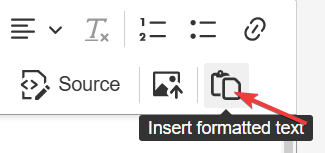
2. Insert formatted text
The “Insert formatted text” tool should retain the original formatting. Use CTRL+SHIFT+V (or CMD+SHIFT+V on Mac) to insert formatted text. Depending on the result, you may need to:
- Add formatting that was lost using the tools in our text editor.
- Remove formatting to ensure clean, consistent text (see points 3. and 4. below).
3. Remove formatting
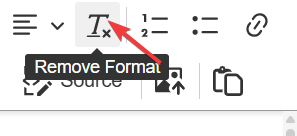
If you pasted content with formatting (typically inline HTML and CSS styles) and need to remove it, use the “Remove Format” tool. This feature removes inline styles (e.g., font size, color, style) while preserving block-level formatting (e.g., headings, paragraphs) and semantic data (e.g., links).
4. Check the Source Code
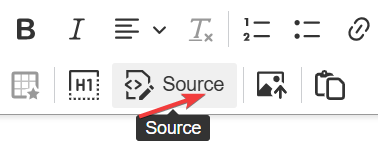
If you’re comfortable with HTML, click the “Source” tool to view and edit the underlying HTML code. See this article for more information about editing HTML in our editor.
5. Contact Support
Still having trouble? Contact us at [email protected] — we’re happy to help.